Customer Facing Screens
2 line Customer Display
The 2 line customer display we usually supply connects to the back of the Posiflex terminal. It connects via a small USB cable it is supplied with and there is a panel you can remove on the top left on the back of the Posiflex which has a USB socket it can connect to.
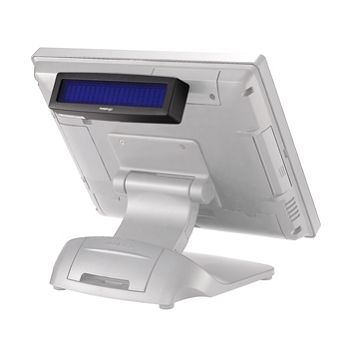
Once it is connected put the files from the Posiflex customer display folder in the intouch folder on the s: drive in the Winci folder on the server.
In the program go into options and the setup tab and then click more and the customer Display options should be on the right.
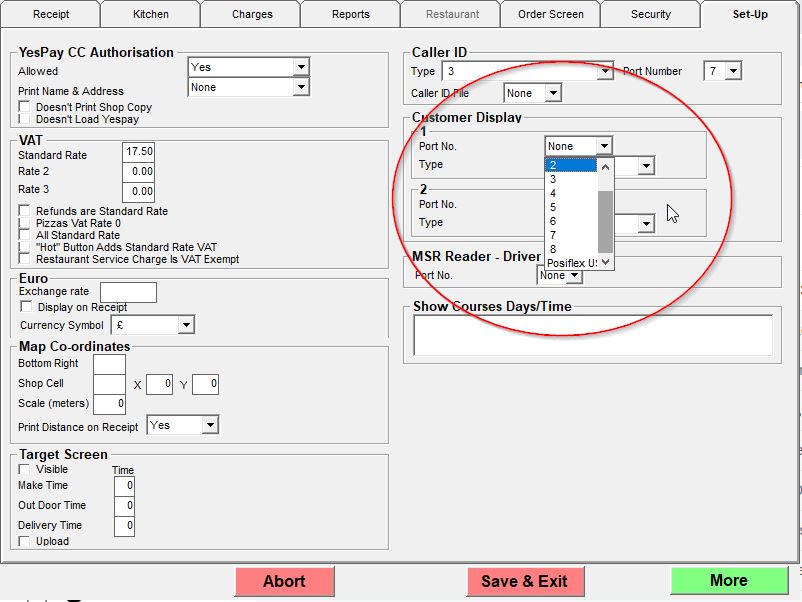
First Choose which port the Display is connected too. The drop down has a list of COM ports but the Posiflex USB we usually use is at the bottom of the list.
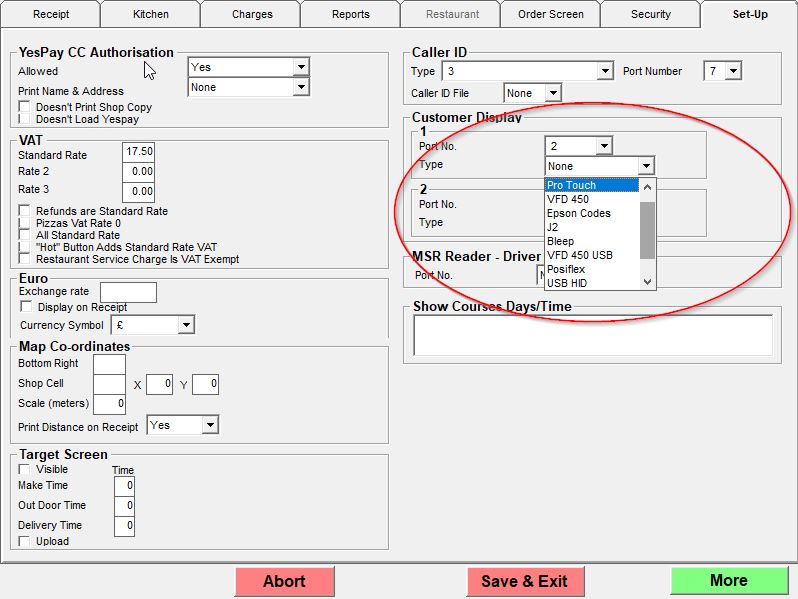
Then choose the type of Customer Display from the drop down. The list comprises different types of Customer Display but the one we usually use is the USB HID choice on the list.
The 2 line Customer Display will display the shop name and time normally. When you are in an order it will display each item you choose and its price. At the end of the order it will say "Total Amount" and display the total amount of the order.
2nd Monitor Customer Facing Screen
The 2nd screen we usually supply connects to the back of the Posiflex terminal. It connects via a small USB cable it is supplied with and there is a panel you can remove on the top left on the back of the Posiflex which has a USB socket it can connect to.
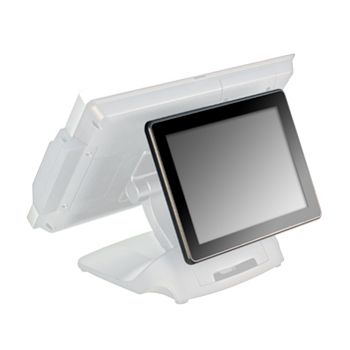
The machine with the display needs a folder in the winci folder called images that has at least 2 .JPG files in it.
It needs a space and then /EF on the command line after the wcimani.exe on the server
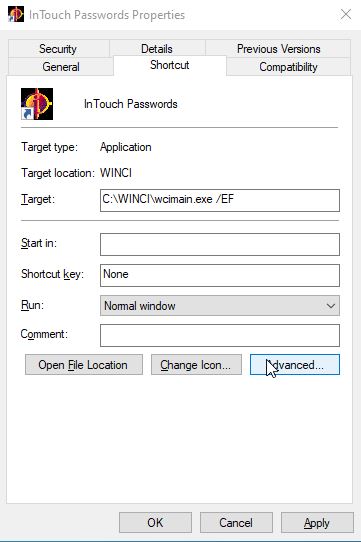
or in the intouch.bat file if it is a terminal
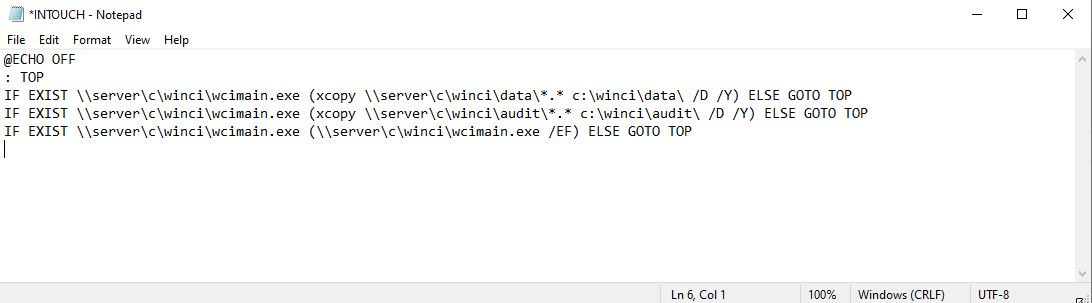
Below is a link to the Posiflex site to the drivers for the screen we normally supply.
https://www.posiflex.com/en-global/product/index/POS-Monitor/Attachment/LM-6810U#download
When the driver is installed there should be 2 screens showing in the display settings and this screen needs to be to the left of the main screen.
There is a power button on the back of the small screen if it doesn't seem to work.
It should just display whatever is in the images folder as a slideshow and if you go into an order it should display the receipt being built up on the right like it does on the order screen.